
This split PDF tool pulls the pages you need out of a PDF, or cuts the whole file into smaller PDFs. Type ranges such as 1-3, 5, 8-end, save every page as its own file, or split into files of a fixed number of pages.
Pages are copied, not redrawn, so text stays selectable and diagrams stay sharp. The work is done in your browser and the PDF is never uploaded.
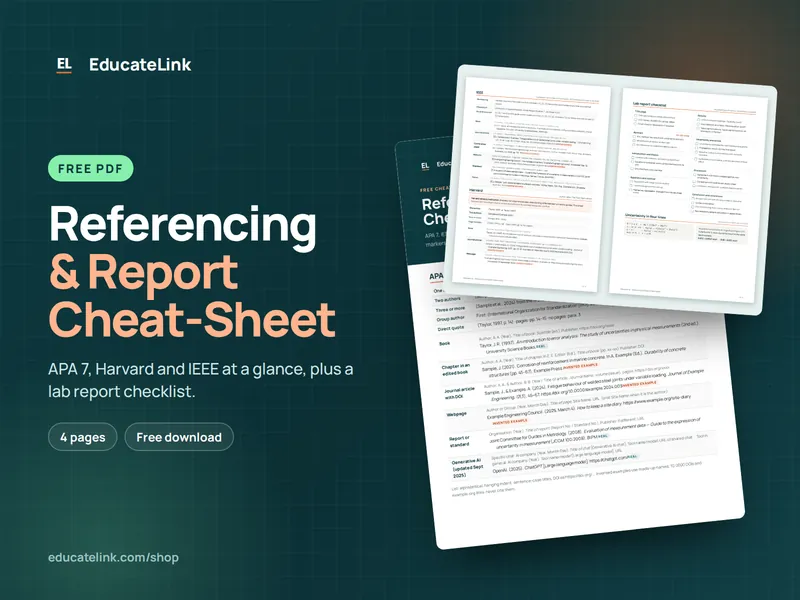
Referencing & Report Cheat-Sheet
A free 4-page PDF: APA 7, Harvard and IEEE at a glance, plus a lab report checklist.
How to use it
- Click Choose a PDF or drop a file on the box. The line underneath shows its page count and size.
- Pick an option under How to split: Extract selected pages into one PDF, Every page as a separate PDF (ZIP) or Split into files of N pages each (ZIP).
- For extracting, type the pages in Pages to extract. For fixed-size files, set Pages per file.
- Click Split PDF, then Download. Several output files arrive as one ZIP.
How page ranges and splitting work
The page list takes single pages and ranges separated by commas. 8-end runs to the last page, a reversed range such as 5-2 is read as 2–5, and pages come out in the order you type them, so 4, 1-3 moves page 4 to the front. A page past the end of the file stops the job with a message.
pdf-lib copies the chosen pages into a new document for each output file. Every-page mode names files name-p1.pdf, name-p2.pdf and so on; N-page mode names them by range, such as name-p1-2.pdf. JSZip packs two or more files into name-split.zip. Encrypted PDFs are refused, even ones that open freely but restrict editing.
Example: pages 1-3 of the lecture notes
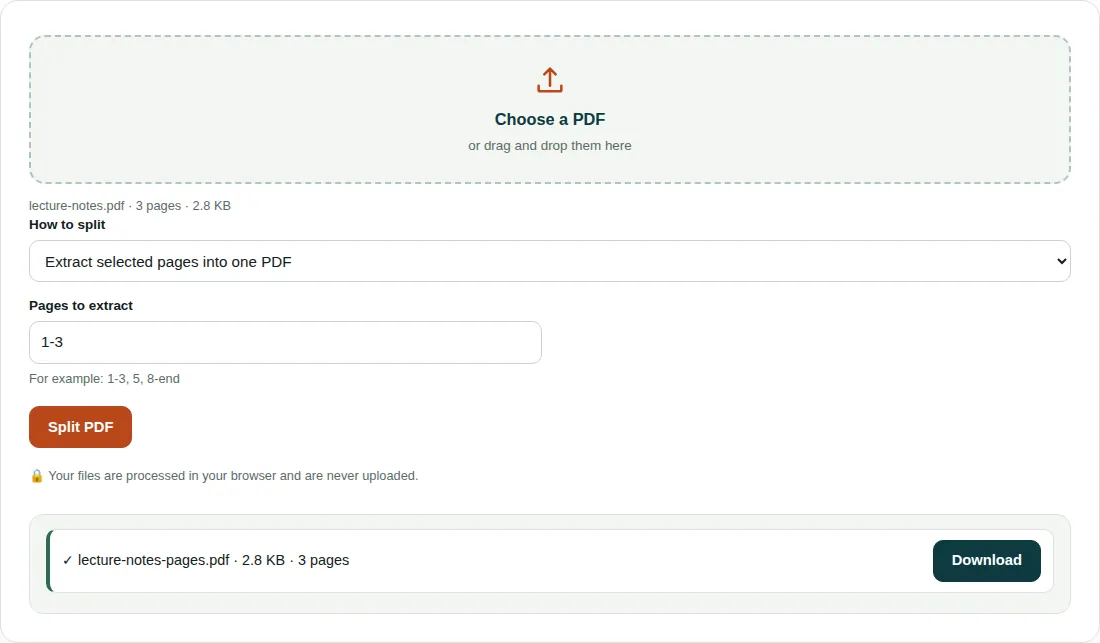
lecture-notes.pdfloads as 3 pages, 2.8 KB.- The starting range,
1-3, 5, asks for a page 5 that does not exist, so the tool resets the box to1-3when the file loads. - Split PDF gives
lecture-notes-pages.pdf: 3 pages, 2.8 KB. - With Every page as a separate PDF (ZIP), the same file gives three single-page PDFs of about 1.4 KB each, 4.1 KB in total.
Things to know
- Each output file carries its own copy of the fonts and images its pages use. Single-page files can add up to more than the original, as the 2.8 KB to 4.1 KB example shows.
- Splitting does not make pages lighter. For a smaller file, run the result through Compress PDF.
- Bookmarks are not carried into the new files.
Questions people ask
How do I extract certain pages from a PDF?
Choose Extract selected pages into one PDF and type the pages in Pages to extract, for example 1-3, 5, 8-end. Click Split PDF and you get one new PDF with only those pages, in the order you typed them.
How do I split a PDF into single pages?
Choose Every page as a separate PDF (ZIP) and click Split PDF. A 12-page file gives 12 PDFs named name-p1.pdf to name-p12.pdf, packed in one ZIP.
Does splitting a PDF reduce its quality?
No. Pages are copied into the new files as they are, so text stays selectable and images keep their resolution. Nothing is redrawn or re-compressed.
Related tools
- Merge PDF: Join several PDF files into one, in the order you choose.
- Compress PDF: Make a PDF smaller for email and upload limits.
- PDF to Image: Turn PDF pages into JPG, PNG or WebP images.