
Compress PDF files that are too big for an email or an upload portal. Two settings redraw each page as a JPEG at 150 or 110 dpi, which works best on scans and photo-heavy PDFs. A Basic setting re-saves the file and keeps text as text.
Everything runs in your browser, so a signed form or marked assignment is never uploaded. If a setting saves 1% or less, the tool tells you to keep the original.
How to use it
- Click Choose a PDF or drop the file on the box. Its name and size appear underneath.
- Under Compression, pick Basic, Recommended (the default) or Strong.
- Click Compress PDF. A progress bar counts through the pages.
- Check the new size and saving in the result line, then click Download.
What each compression setting does
| Setting | What happens | Text selectable |
|---|---|---|
| Basic | pdf-lib opens the file and saves it again with compressed object streams | Yes |
| Recommended | Each page drawn at 150 dpi and saved as JPEG, quality 0.72 | No |
| Strong | Each page drawn at 110 dpi and saved as JPEG, quality 0.55 | No |
For the image settings, PDF.js draws each page on a white canvas at dpi ÷ 72 times its size in points, and pdf-lib places the JPEG on a new page of the same size. An A4 page becomes 1241 × 1754 px at 150 dpi, or 910 × 1287 px at 110 dpi. Links, bookmarks and form fields do not survive. Basic keeps them, but refuses encrypted PDFs and gives only a small saving.
Example: a scanned assignment on Strong
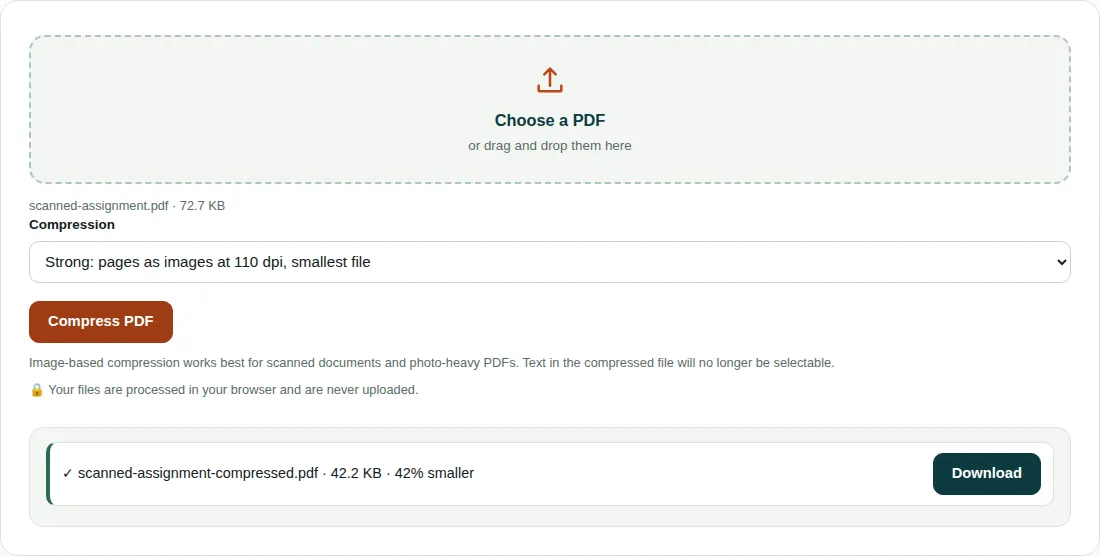
scanned-assignment.pdfis 72.7 KB: 3 A4 pages turned sideways (841.89 × 595.28 pt), each holding one photo or diagram.- Width in pixels: 841.89 × 110 ÷ 72 = 1286.2, rounded up to 1287. Height: 595.28 × 110 ÷ 72 = 909.5, rounded up to 910. Each page is saved as a 1287 × 910 JPEG at quality 0.55.
- The new file is 42.2 KB. Saving: 1 − 42.2 ÷ 72.7 = 0.42, shown as 42% smaller.
- Basic on the same file saves nothing (74,458 bytes against 74,454), so the tool would suggest Strong instead.
Getting the smallest useful file
- Start with Recommended. Go to Strong only if the file is still too big: 110 dpi reads fine on screen, but small print looks soft on paper.
- A PDF of typed text is already small. Drawing its pages as pictures makes it bigger, and the tool will tell you to keep the original.
- Keep your original. A compressed copy cannot be turned back into selectable text.
Questions people ask
How do I reduce a PDF file size for email?
Choose the PDF, leave Compression on Recommended and click Compress PDF. Scans and photo-heavy files shrink the most, because their large images are replaced by one 150 dpi JPEG per page. If it is still too large, try Strong, or split the file and send it in parts.
Why can’t I select text after compressing a PDF?
Recommended and Strong replace each page with a JPEG picture of it, so there is no text layer left to select or search. Use Basic if you need the text.
Can I compress a PDF to a set size, like under 1 MB?
There is no target-size box. The size depends on the page count, the content and the setting, so try Recommended, then Strong, and read the new size in the result line.
Related tools
- Split PDF: Extract pages or split a PDF into separate files.
- Merge PDF: Join several PDF files into one, in the order you choose.
- Image Compressor: Shrink and resize photos without visible quality loss.