
Convert PDF to JPG, PNG or WebP, one image per page. Pick a resolution from 96 dpi for screens to 300 dpi for print, and convert every page or only the ones you need.
Use it for slides from a lecture PDF, a figure for a report or a page to share in a group chat. PDF.js draws the pages inside your browser, so the file never leaves your device.
How to use it
- Click Choose a PDF or drop the file on the box.
- Set the Image format (JPG, PNG or WebP) and Resolution (96, 150, 200 or 300 dpi).
- Leave Pages (blank for all) empty for every page, or type pages such as
1-3, 7. - Click Convert to images, then Download. One page gives a single image; more give a ZIP.
How the pages become images
PDF page sizes are in points of 1/72 inch, so PDF.js draws each page on a white canvas scaled by dpi ÷ 72, with the pixel size rounded up. The browser then encodes it: JPG and WebP at quality 0.9, PNG without loss. JSZip bundles several pages into name-images.zip, with files named name-page1.jpg and so on.
| Resolution | A4 page (pixels) |
|---|---|
| 96 dpi | 794 × 1123 |
| 150 dpi | 1241 × 1754 |
| 200 dpi | 1654 × 2339 |
| 300 dpi | 2481 × 3508 |
If your browser cannot write WebP, it returns PNG and the files get a .png extension. PDFs that need a password to open are not supported.
Example: lecture notes at 150 dpi
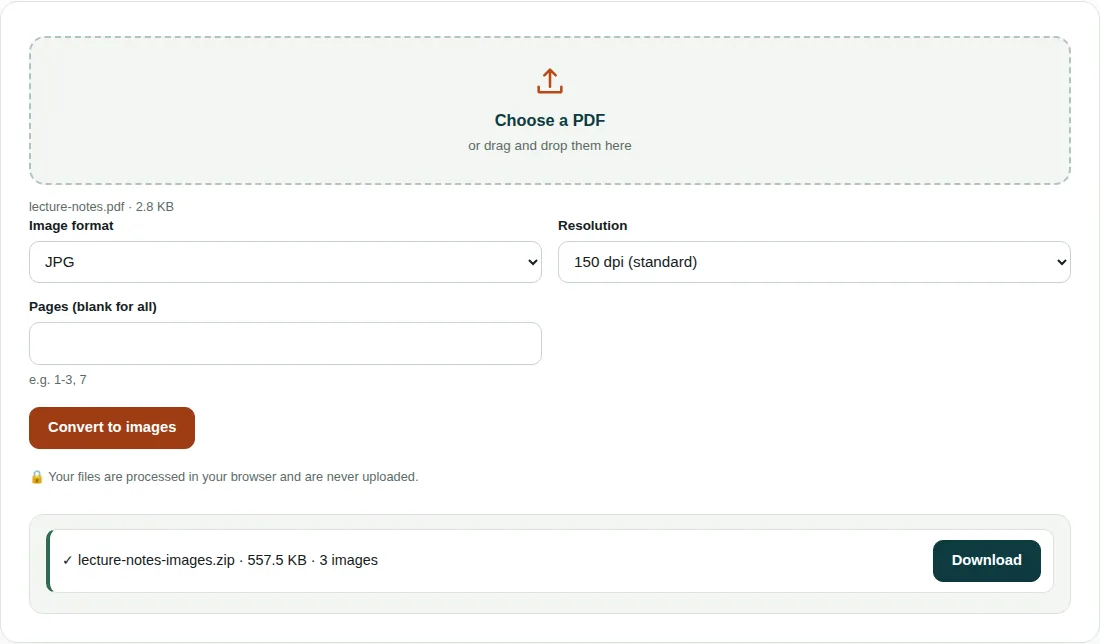
lecture-notes.pdf: 3 pages of 595 × 842 pt, 2.8 KB.- Scale = 150 ÷ 72 = 2.083. Width 595 × 2.083 = 1239.6, rounded up to 1240 px. Height 842 × 2.083 = 1754.2, rounded up to 1755 px.
- Each page becomes a 1240 × 1755 JPG of about 186 KB, and the three go into
lecture-notes-images.zip, 557.5 KB. - That is about 200 times the size of the PDF: the PDF stores text as instructions, while a JPG stores every pixel.
Choosing format and resolution
- PNG keeps text and line drawings crisp, with no JPEG blur around letters. JPG is smaller for scans and photos.
- 150 dpi is enough for slides and screens. 300 dpi has four times as many pixels, so keep it for printing.
- Large sheets, such as A1 drawings at 300 dpi, can exceed the canvas size limit of some browsers, especially on phones. Lower the resolution for those.
- Transparent areas in the PDF come out white.
Questions people ask
What DPI should I use to convert PDF to JPG?
Use 150 dpi for screens, slides and sharing; an A4 page comes out at 1241 × 1754 px. Use 300 dpi (2481 × 3508 px) when the image will be printed. 96 dpi gives small files for quick previews.
How do I convert just one page of a PDF to JPG?
Type the page number in Pages (blank for all), for example 4, and click Convert to images. A single page downloads as one image file, not a ZIP.
Is PNG or JPG better for PDF pages?
PNG is better for pages of text, tables and line drawings because it is lossless and keeps edges sharp. JPG gives smaller files for scans and photos.
Related tools
- Images to PDF: Combine photos or scans into a single PDF.
- Image Compressor: Shrink and resize photos without visible quality loss.
- PDF to Word: Convert a PDF into an editable Word (.docx) file.